> For the complete documentation index, see [llms.txt](https://docs.hablla.com/llms.txt). Markdown versions of documentation pages are available by appending `.md` to page URLs; this page is available as [Markdown](https://docs.hablla.com/hablla-docs-en/automation-flows/all-components/hablla/tasks/create.md).
# Create
The Create Task operation allows you to add a new task to the system, ensuring that all necessary information is properly recorded.
### 🎯 What does this operation do?
This operation creates a new task within a workspace, allowing the filling in of information such as:
✅ Task name\
✅ Detailed description\
✅ Task type (call, meeting, email, etc.)\
✅ Responsible user\
✅ Start and end date\
✅ Association with people, cards, organizations and services\
✅ Task checklist
### 📂 How to Configure the "Create" Operation
1️⃣ **Access the Component**\
In **Hablla Studio**, open the automation flow where you want to create a task.
2️⃣ **Add the "Tasks" Block**\
In the right side panel, select the operation **Create**.
3️⃣ **Choose How to Specify the Body**\
You can specify the task data U**sing Fields** or **Using JSON**.
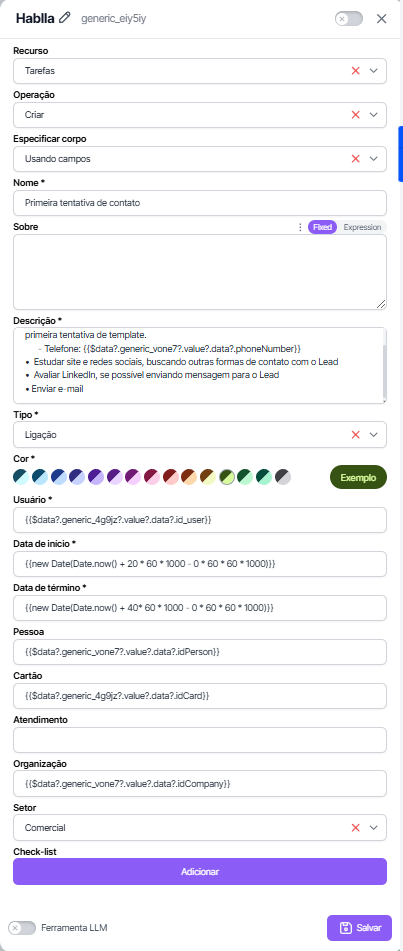
### 🔹 **Specify Body: Using Fields**
If the option **Using Fields** is selected, the following fields can be filled in:
| Field | Type | Required | Description |
| ------------------------ | --------------- | -------- | --------------------------------------------------------------------------------------------------------------------------------------------- |
| **Task Name** | `string` | ✅ Yes | Name or title of the task being created. |
| **About** | `string` | ✅ Yes | Detailed information about the task. |
| **Description** | `string` | ✅ Yes | Detailed description of the task. |
| **Task Type** | `string (enum)` | ✅ Yes | Specifies the type of task, such as call, meeting, email, etc. |
| **Start Date** | `datetime` | ✅ Yes | Start date and time of the task. |
| **Finish Date** | `datetime` | ✅ Yes | Expected date and time for task completion. |
| **Responsible User** | `string` | ❌ No | ID of the user responsible for carrying out the task. |
| **Associated Person ID** | `string` | ❌ No | ID of the person related to the task. |
| **Organization ID** | `string` | ❌ No | ID of the organization related to the task. |
| **Associated Card ID** | `string` | ❌ No | ID of the card to which the task is linked. |
| **Sector** | `string` | ❌ No | Sector or department related to the task. |
| **Checklist** | `array` | ❌ No | List of items to be checked or completed within the task. Each item in the array must follow the structure: `{ "item": "Item description" }`. |
✅ After filling in the fields, click **Save** to complete the configuration.
Call task for in 20 minutes lasting 20 minutes
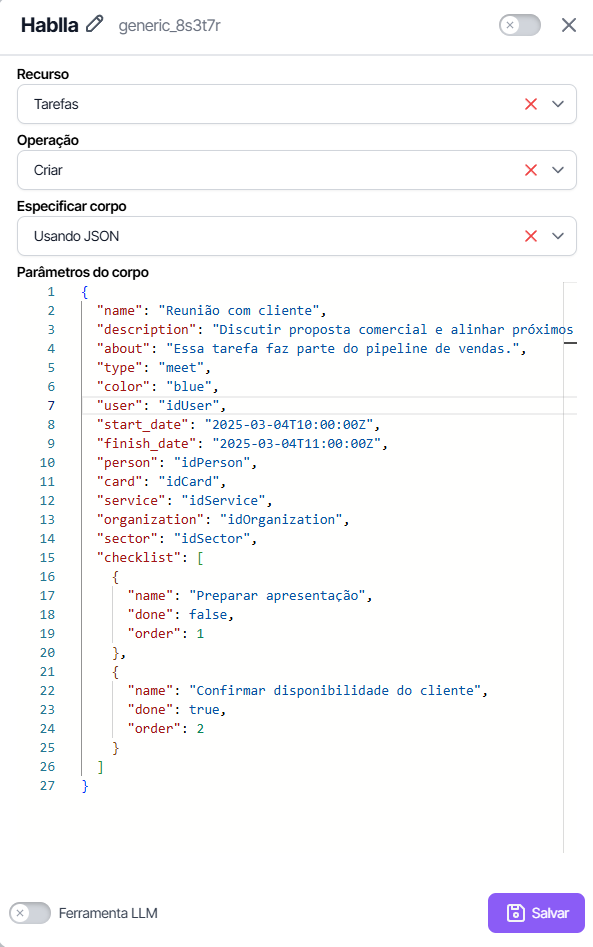
### 🔹 **Specify Body: Using JSON**
If the option **Using JSON** is selected, use the following format to send the task data:
```json
{
"name": "Meeting with client",
"description": "Discuss commercial proposal and align next steps.",
"about": "This task is part of the sales pipeline.",
"type": "meet",
"color": "blue",
"user": "idUser",
"start_date": "2025-03-04T10:00:00Z",
"finish_date": "2025-03-04T11:00:00Z",
"person": "idPerson",
"card": "idCard",
"service": "idService",
"organization": "idOrganization",
"sector": "idSector",
"checklist": [
{
"name": "Prepare presentation",
"done": false,
"order": 1
},
{
"name": "Confirm client's availability",
"done": true,
"order": 2
}
]
}
```
#### 🔍 **ID Format**
The fields `person`, `card`, `service`, `organization`, `sector` and `user` must contain IDs in the following format:
```
674f6ee3debc8828cde11e3b
```
To make reading easier, the placeholders were used in the example above `idPerson`, `idCard`, `idService`, `idOrganization`, `idSector` and `idUser`.
✅ After inserting the JSON correctly, click **Save** to complete the configuration.
***
### 📌 **Usage Example in an Automation Flow**
#### 🎯 Scenario: Automatically create a task for a new sales opportunity.
1️⃣ **Block 1** → Capture a new lead via form.\
2️⃣ **Block 2** → Create a new task in the CRM for follow-up.\
3️⃣ **Block 3** → Set the user responsible for the task.
🚀 **Result:** Whenever a new lead is captured, a task will be automatically created for follow-up.
### 🎉 **Conclusion**
The operation **Create Task** in Hablla Studio allows you to organize and automate the management of activities within the system. You can choose between configuring the fields manually or using a **JSON** custom for greater flexibility.
If you need more support, contact our team! 🚀
---
# Agent Instructions
This documentation is published with GitBook. GitBook is the documentation platform designed so that both humans and AI agents can read, navigate, and reason over technical content effectively. Learn more at gitbook.com.
## Querying This Documentation
If you need additional information that is not directly available in this page, you can query the documentation by asking a question.
Perform an HTTP GET request on the following URL with the `ask` and `goal` query parameters:
```
GET https://docs.hablla.com/hablla-docs-en/automation-flows/all-components/hablla/tasks/create.md?ask=&goal=
```
`ask` is the immediate question: it should be specific, self-contained, and written in natural language.
`goal` is what the user is ultimately trying to achieve, the reason they need the answer. Sharing it helps GitBook give you a better, more relevant answer. A goal is most helpful when it describes the outcome the user wants rather than restating the question. For example, with `ask=how do I create an API token`, a goal like `automate deployments from our CI pipeline` lets GitBook tailor the answer to that use case.
The response will contain a direct answer to the question and relevant excerpts and sources from the documentation.
Use this mechanism when the answer is not explicitly present in the current page, you need clarification or additional context, or you want to retrieve related documentation sections.