> For the complete documentation index, see [llms.txt](https://docs.hablla.com/llms.txt). Markdown versions of documentation pages are available by appending `.md` to page URLs; this page is available as [Markdown](https://docs.hablla.com/hablla-docs-en/hablla/marketing/landing-page.md).
# Landing Page
## Hablla — Landing Page
Purpose: to build and publish a simple landing page using visual blocks or code (HTML/CSS).
\
Important: before editing, have HTML and CSS ready (you can ask an AI to generate them).
***
### 1) Access and create the project
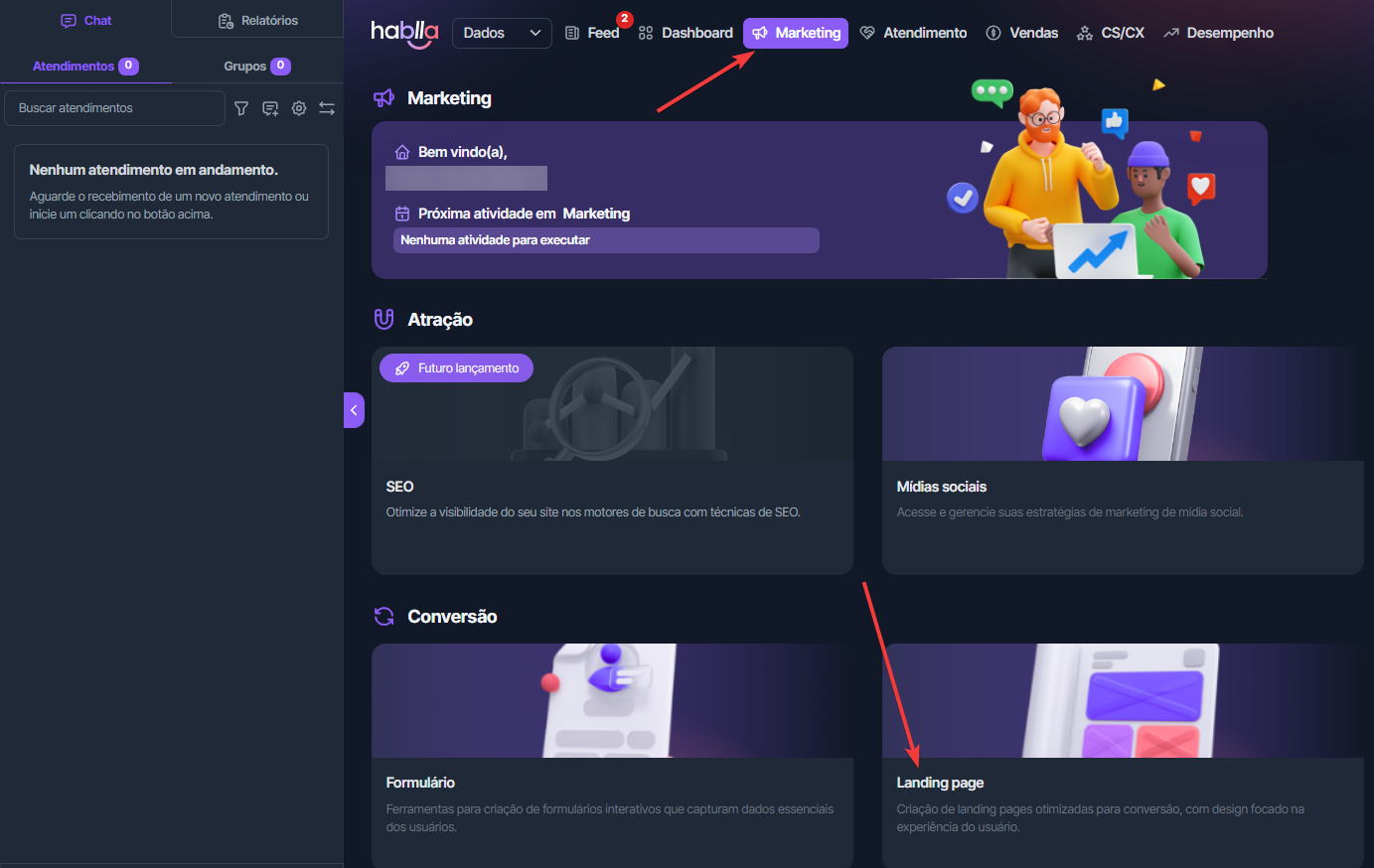
1. Go to Marketing → Landing Page.\
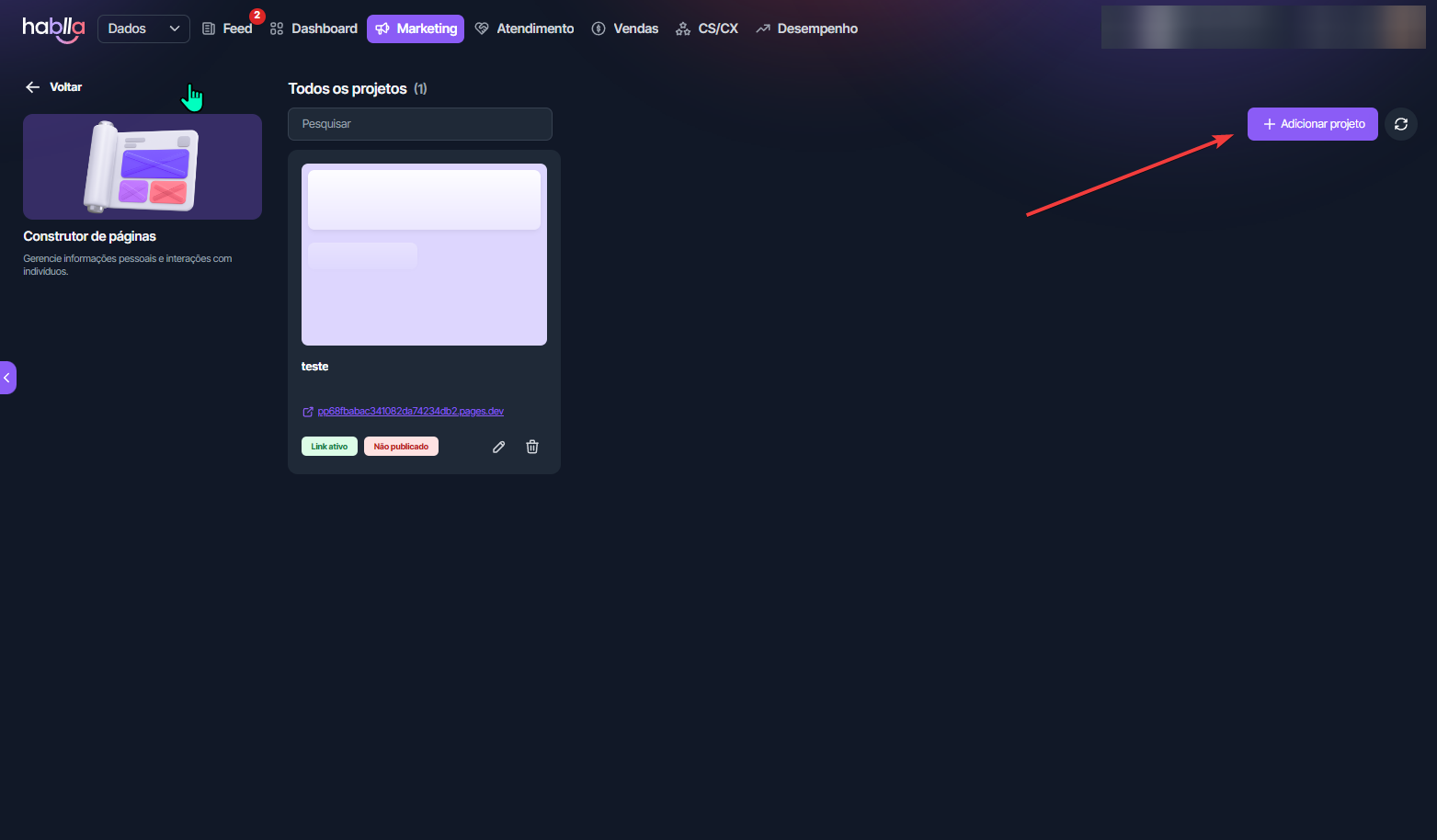
2. Click Add project (blank template) and give it a name.\
Result: you enter the Project Editor.
***
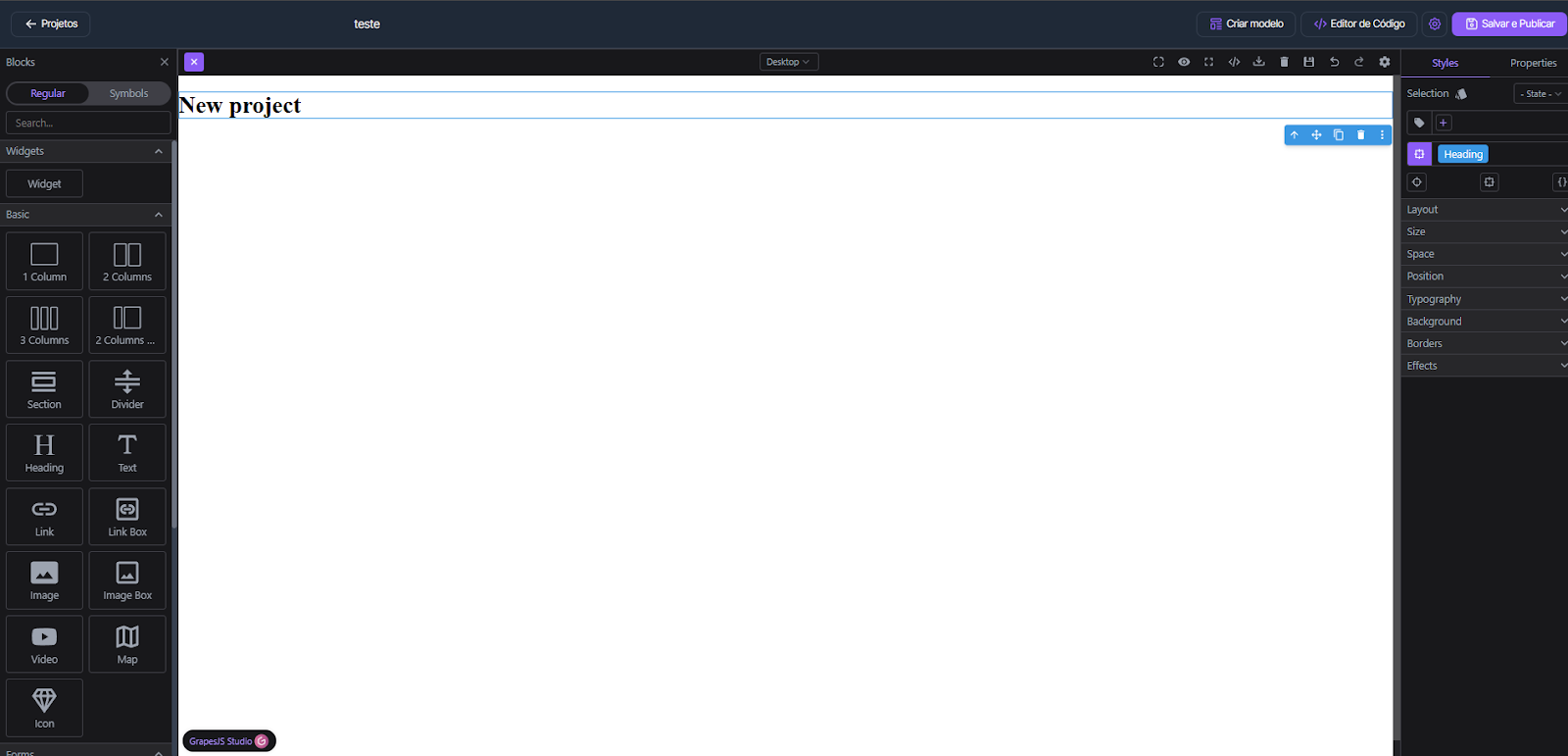
### 2) Understanding the Editor screen
* Top (right):\
* Create template → saves the current layout as a template to reuse later.\
* Code Editor → opens a modal with two tabs to paste HTML and CSS.\
* Save and Publish → publishes the page (the link will be available in the project list).\
* Top (center): Desktop/Mobile selector (to check responsiveness).\
* Left: Pages and Layers (element tree to ease selection).\
* Center: Canvas (where you view and build the page).\
* Right: Styles and Properties (visual adjustments and attributes of the selected item).
\
***
### 3) Option A — Build with blocks (drag & drop)
In the Blocks panel (palette), you have the components:
* Section (creates a section); 1 Column / 2 Columns / 3 Columns (column structure)\
* Heading (title), Text (text)\
* Image (image), Link / Link Box (links), Video, Map\
How to use (quick example):
1. Drag a Section to the Canvas.\
2. Inside it, drag 2 Columns.\
3. On the left: Heading + Text. On the right: Image (upload it).\
4. Select each item and adjust in Styles (typography, color, spacing, background).\
***
### 4) Option B — Build with code (HTML/CSS)
1. Click Code Editor.\
2. In the HTML tab, paste your landing's HTML.\
3. In the CSS tab, paste the styles.\
4. Click Save to apply to the Canvas.\
Note: if you want to use the platform's native form later (for lead/tag/webhook), do not insert \