> For the complete documentation index, see [llms.txt](https://docs.hablla.com/llms.txt). Markdown versions of documentation pages are available by appending `.md` to page URLs; this page is available as [Markdown](https://docs.hablla.com/hablla-docs-en/hablla/settings/credentials.md).
# Credentials
The **credentials** are a set of information that usually include a username, password, token, or API key. They are essential to authenticate and establish a secure connection between the omnichannel platform and various services, such as email, WhatsApp, and CRMs like RD Station. In this guide, you will learn **what credentials are and how to use them** to facilitate integration and optimize communication.
### How to use credentials in Studio Hablla to integrate services
* **Connect to the service:** they ensure that the omnichannel tool has authorized access to the external service.
* **Secure data exchange:** with the correct credentials, the platform can send and receive data such as messages, lead information, and customer data securely.
* **Process automation:** by connecting the platform to other services, credentials enable the automation of tasks, such as sending automatic messages, recording interactions, and tracking leads in a CRM.
It is worth remembering that each service (such as WhatsApp, email, and RD Station) usually requires different types of credentials, as each has its own security and authentication rules.
### Step-by-step to configure credentials in Studio Hablla
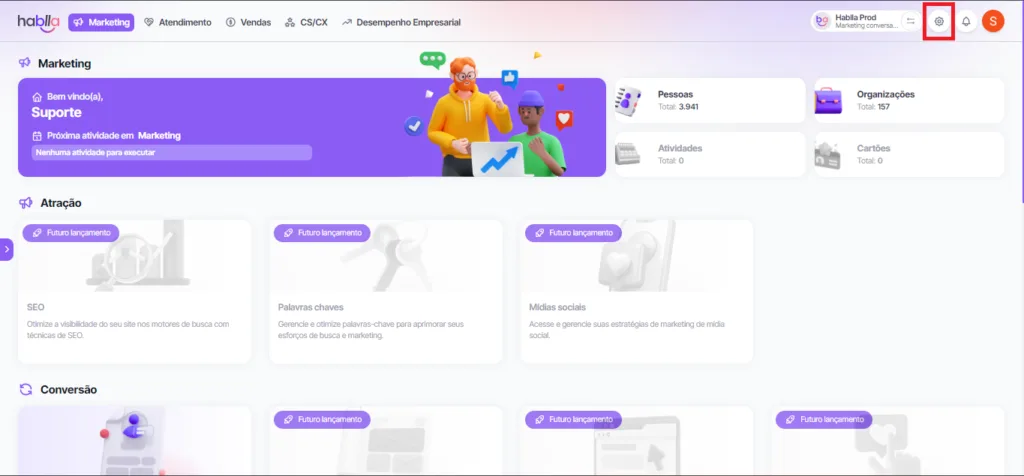
1\. Once logged into your account, go to the [**Studio**](https://studio.hablla.com/workspace/643d802021b6aa9234eb9797/marketing?fbp=fb.1.1753742035820.5658395625\&sck=730218fd-da2e-40d1-b6a8-b13deea06044\&external_id=730218fd-da2e-40d1-b6a8-b13deea06044). In the upper right corner of the screen, next to the initial of your name, you will find the **Settings** (gear) icon. Click it to open the settings menu.\
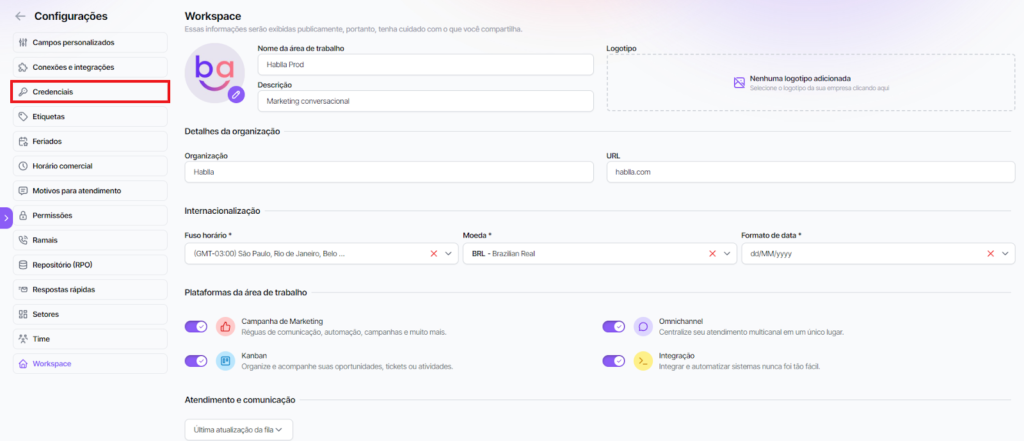
2\. On the left side of the screen in the Settings menu, locate the **Credentials**.\
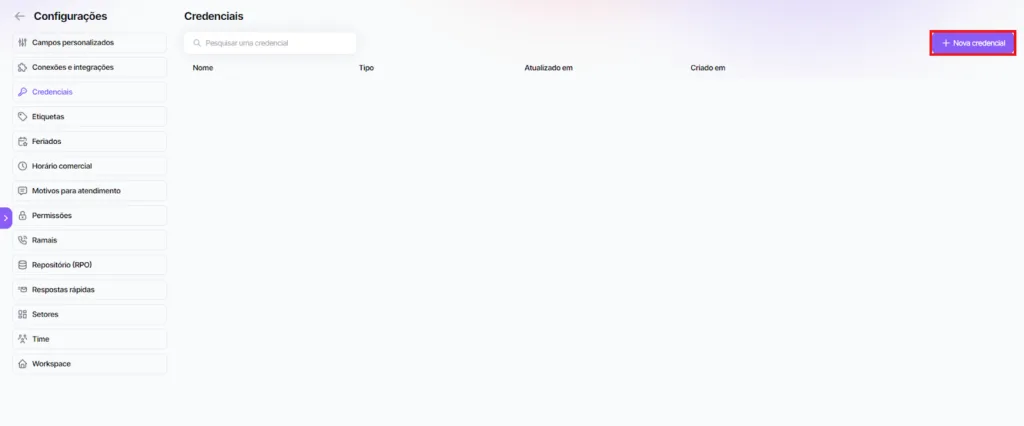
3\. On the left side of the screen, click **+ New Credential**. This will allow you to set up a new external connection, enabling the sending and receiving of data, as well as task automation.\
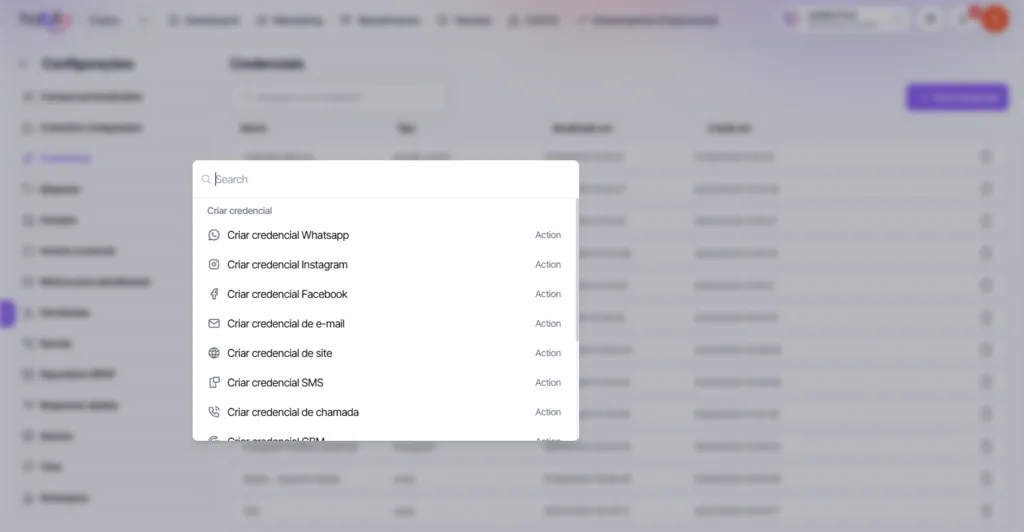
4\. Select the type of credential you want to create, based on the service you want to integrate, such as email, WhatsApp, website, among others.\
\
4\. Enter the information required for the credential you chose and then click **Save**.
**See how easy it is? Done! Your credential has been configured in Studio Hablla. Now you can manage the connection to the selected service, making communication and process automation easier.**
---
# Agent Instructions
This documentation is published with GitBook. GitBook is the documentation platform designed so that both humans and AI agents can read, navigate, and reason over technical content effectively. Learn more at gitbook.com.
## Querying This Documentation
If you need additional information that is not directly available in this page, you can query the documentation dynamically by asking a question.
Perform an HTTP GET request on the current page URL with the `ask` query parameter, and the optional `goal` query parameter:
```
GET https://docs.hablla.com/hablla-docs-en/hablla/settings/credentials.md?ask=&goal=
```
`ask` is the immediate question: it should be specific, self-contained, and written in natural language.
`goal` is optional and describes the broader end goal you are ultimately trying to accomplish on behalf of the user. GitBook uses it to tailor the answer towards what is most useful for that goal.
The response will contain a direct answer to the question and relevant excerpts and sources from the documentation.
Use this mechanism when the answer is not explicitly present in the current page, you need clarification or additional context, or you want to retrieve related documentation sections.