# How to Change the Location of a Flow on Hablla

At Hablla, it is possible to create and manage automation flows in different areas of the system.\
If it is necessary to change the location where a flow is allocated, follow the step-by-step below.

***

### 📂 Where Can Flows Be?

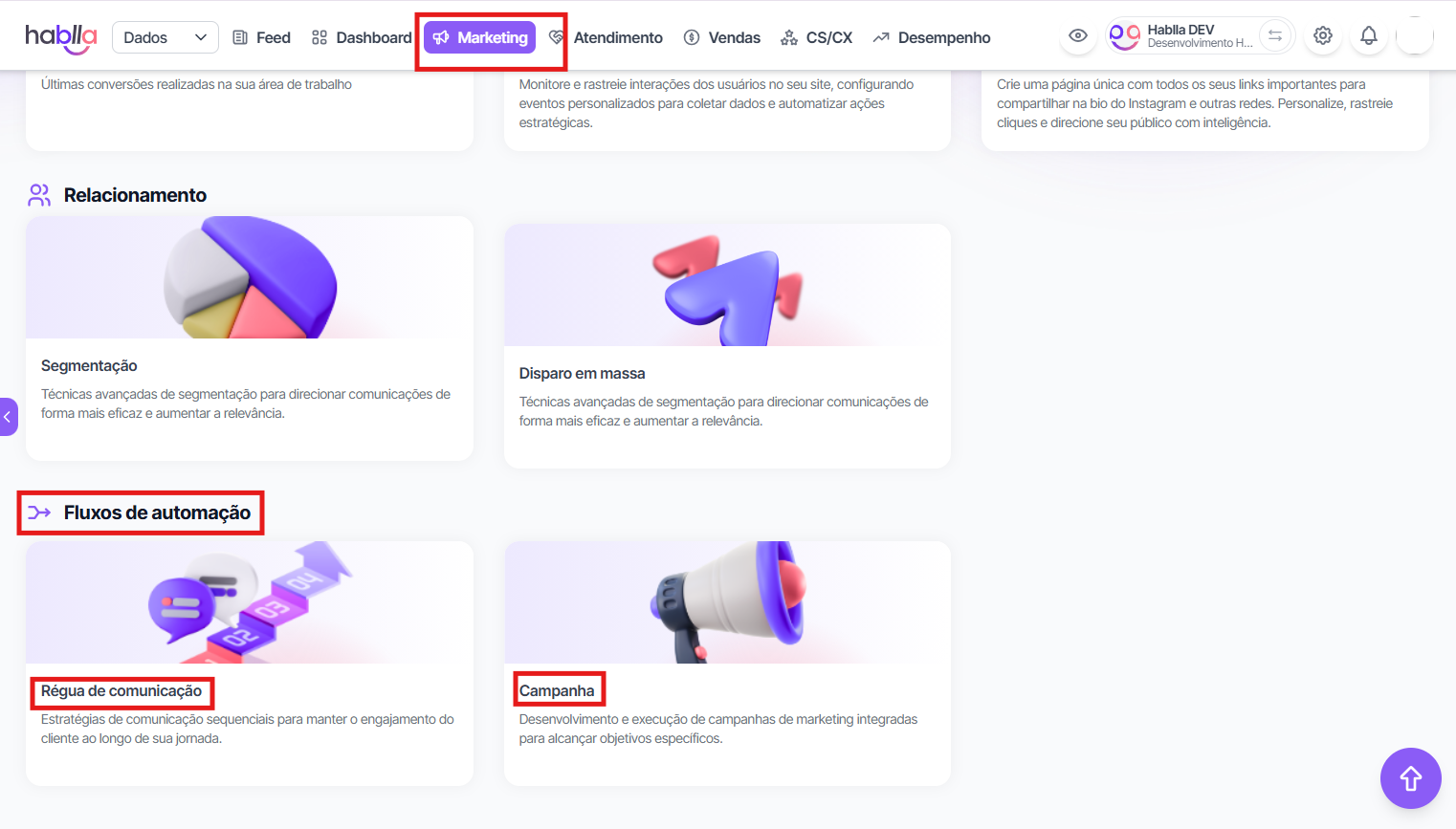
#### 📢 Marketing

* 📌 Marketing > Automation flows > Communication Ladder\ <br>
* 📌 Marketing > Automation flows > Campaign

\
\ <br>

<figure><img src="https://1592162275-files.gitbook.io/~/files/v0/b/gitbook-x-prod.appspot.com/o/spaces%2FrmxWrIrMauHcIrsuqfGq%2Fuploads%2FP09rabgA4RgIk38dDYtm%2Funknown.png?alt=media&#x26;token=548375a7-5296-444c-bbe5-bdc7c192f4cb" alt=""><figcaption></figcaption></figure>

#### 💬 Support

* 📌 Support > Automation flows > Lead Qualification Bot\ <br>

<br>

\ <br>

<figure><img src="https://1592162275-files.gitbook.io/~/files/v0/b/gitbook-x-prod.appspot.com/o/spaces%2FrmxWrIrMauHcIrsuqfGq%2Fuploads%2Fnx1RsQavJn0Raz1fvU6a%2Funknown.png?alt=media&#x26;token=09b3b417-1ad5-470c-b243-0550f12750f1" alt=""><figcaption></figcaption></figure>

* Sales\ <br>
* Sales > Automation flows > CRM Automation

\ <br>

<figure><img src="https://1592162275-files.gitbook.io/~/files/v0/b/gitbook-x-prod.appspot.com/o/spaces%2FrmxWrIrMauHcIrsuqfGq%2Fuploads%2FNp8nHLh1XgkJVB2oQVK2%2Funknown.png?alt=media&#x26;token=78ddbdee-cfac-4c0e-a269-b32aa25af546" alt=""><figcaption></figcaption></figure>

* CS/CX\ <br>
* CS/CX > Automation > Flows

\ <br>

<figure><img src="https://1592162275-files.gitbook.io/~/files/v0/b/gitbook-x-prod.appspot.com/o/spaces%2FrmxWrIrMauHcIrsuqfGq%2Fuploads%2FPD0YKxk819VfpLCqsxsg%2Funknown.png?alt=media&#x26;token=cb5be3d9-edc4-4998-8417-a691309ebb2f" alt=""><figcaption></figcaption></figure>

* Performance\ <br>
* Performance > Automation flows > System integration

<figure><img src="https://1592162275-files.gitbook.io/~/files/v0/b/gitbook-x-prod.appspot.com/o/spaces%2FrmxWrIrMauHcIrsuqfGq%2Fuploads%2FHQzVjDAmYUowjgbx8oPT%2Funknown.png?alt=media&#x26;token=88cad5fb-f627-4e4a-974f-237b862b387c" alt=""><figcaption></figcaption></figure>

***

#### How to Change a Flow's Location

Example: I want to move a flow from Support > Automation flows > Lead Qualification Bot to Marketing > Automation flows > Campaign.

**Step by Step**

1. 🔎 Identify the flow you want to move\ <br>
2. Go to the tab where the flow is currently located (e.g.: Support > Automation flows > Lead Qualification Bot > My flows).

![](https://1592162275-files.gitbook.io/~/files/v0/b/gitbook-x-prod.appspot.com/o/spaces%2FrmxWrIrMauHcIrsuqfGq%2Fuploads%2FmZQgx96VYwosFRAcuR7O%2Funknown.png?alt=media\&token=c9bf0f52-c2c8-4d1a-ad78-91fc5129ceb0)\ <br>

* Locate and open the desired flow.

\
![](https://1592162275-files.gitbook.io/~/files/v0/b/gitbook-x-prod.appspot.com/o/spaces%2FrmxWrIrMauHcIrsuqfGq%2Fuploads%2FepfhL4Nt76IdbQpDdYeN%2Funknown.png?alt=media\&token=16281ea6-5702-4fd2-842f-6f104c32a3f7)

2. ⚙️ Access the flow settings\ <br>
3. With the flow open, click on the Tools option.\ <br>
4. Click the gear icon ⚙️ (located in the bottom left corner of the screen).

![](https://1592162275-files.gitbook.io/~/files/v0/b/gitbook-x-prod.appspot.com/o/spaces%2FrmxWrIrMauHcIrsuqfGq%2Fuploads%2F2daytC27JvgzgT44pSh5%2Funknown.png?alt=media\&token=f254131e-6ee9-432f-824d-657a72b94e5e)\
\ <br>

3. 📝 Change the flow's location\ <br>
4. The settings menu will open.\
   \
   ![](https://1592162275-files.gitbook.io/~/files/v0/b/gitbook-x-prod.appspot.com/o/spaces%2FrmxWrIrMauHcIrsuqfGq%2Fuploads%2Fs5Vh6DRX2Bt241yCfhhe%2Funknown.png?alt=media\&token=b25e2a33-bd9b-4364-932c-bbb06ed1fc93)

\ <br>

<br>

* Find the Flow Type field (this field indicates where the flow is allocated).

\
![](https://1592162275-files.gitbook.io/~/files/v0/b/gitbook-x-prod.appspot.com/o/spaces%2FrmxWrIrMauHcIrsuqfGq%2Fuploads%2FLuP2aYgeTvq26f3CqHq0%2Funknown.png?alt=media\&token=7cd48460-8b06-4659-b728-abf7b3f2d316)\ <br>

* Click on it and choose the desired new location from the list (e.g.: Marketing > Automation flows > Campaign).\
  ![](https://1592162275-files.gitbook.io/~/files/v0/b/gitbook-x-prod.appspot.com/o/spaces%2FrmxWrIrMauHcIrsuqfGq%2Fuploads%2FXW0Bwh3sOLJGnHc07JWt%2Funknown.png?alt=media\&token=75c29f64-8bfd-4110-89c1-1cb077de8ff1)

4. 💾 Save the changes\
   After selecting the new location, click Save.\
   ![](https://1592162275-files.gitbook.io/~/files/v0/b/gitbook-x-prod.appspot.com/o/spaces%2FrmxWrIrMauHcIrsuqfGq%2Fuploads%2FhESbCTwB7WY7NsINqfMP%2Funknown.png?alt=media\&token=eb76f1b2-2c35-4d91-a6e9-40bcb1fd8e8c)

<br>

5. ✅ Check if the flow was moved\ <br>
6. Access the new chosen location (e.g.: Marketing > Automation flows > Campaign > My flows).![](https://1592162275-files.gitbook.io/~/files/v0/b/gitbook-x-prod.appspot.com/o/spaces%2FrmxWrIrMauHcIrsuqfGq%2Fuploads%2FC3FO0W5XHfOzgGHLSEpg%2Funknown.png?alt=media\&token=3e4cad67-5d6a-412e-b4c5-f81e8ffb0ff8)\ <br>
7. Check if the flow is in the new location.

\
![](https://1592162275-files.gitbook.io/~/files/v0/b/gitbook-x-prod.appspot.com/o/spaces%2FrmxWrIrMauHcIrsuqfGq%2Fuploads%2FKw3HZoDbYJE8tWVoAWUm%2Funknown.png?alt=media\&token=6092a7d0-0420-4eac-a3cb-87d07dfd7249)<br>